


21-04-2022, 11:40 AM
Thanks to ejwords for making these disks available to be imaged, which were all imaged successfully via a Floppyio unit. All are normal Microbee 5.25" DS40 disks and are bootable.
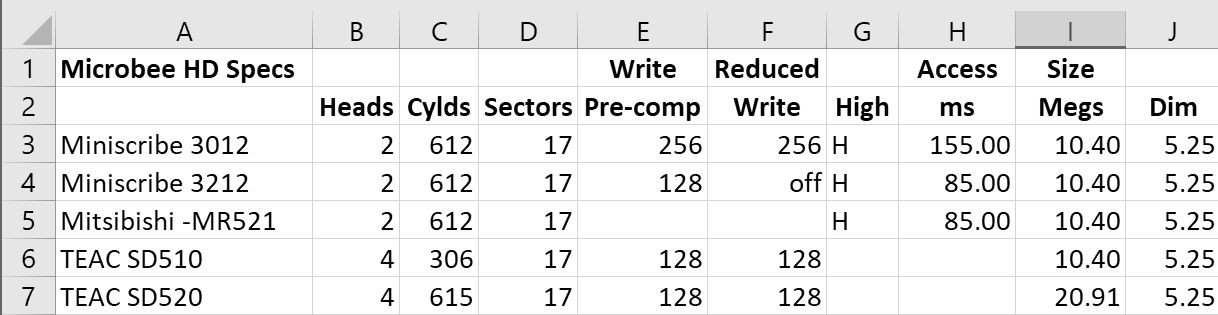
To setup and initialize a 10mb MFM Hard Drive in a Microbee, you need to boot a floppy that has been setup for each of the brand of HD that's installed because each HD had different specs. The Teac (SD510 & SD520), Miniscribe (3012 & 3212) & Mitsibishi (MR521 & MR522) 10mb HD's were the only known ones supplied by Microbee.
MAINTAIN.COM allows you to Backup & Recover data off the HD to & from floppies and also check the HD for error and to try and rectifying them. INIT is much the same as the normal INIT but allows you to set up the HD with 1, 2, 3 or 4 partitions and transfer the system and other files from A: drive.
To boot the floppy in a Microbee 128k HD system, you hold down the F key either while using the Reset key or when you first turn it on. This doesn't work in ubee512, so to boot the floppies with ubee512, just use
ubee512 --rom1=hd18.rom -a hdd_128k_v1.1t_teac_ds40.dsk
this will boot to the Hard Disk Monitor, then just press the F key and it boots the floppy to its Shell.
We already have the Teac version in the repository and this will be renamed and include TEAC in its name. Please make sure you use the right disk for the brand of HD otherwise permanent damage may occur.
So in the MbeeTech Repository in the Microbee\Software\System_Disks folder we placed
hdd_128k_v1.1t_teac_ds40.dsk <-- renamed from hdd_128k_standard_1.1_ds40.dsk
hdd_128k_v1.16m_mitsibishi_ds40.dsk
hdd_128k_v2.2m_miniscribe_ds40.dsk
To setup and initialize a 10mb MFM Hard Drive in a Microbee, you need to boot a floppy that has been setup for each of the brand of HD that's installed because each HD had different specs. The Teac (SD510 & SD520), Miniscribe (3012 & 3212) & Mitsibishi (MR521 & MR522) 10mb HD's were the only known ones supplied by Microbee.
MAINTAIN.COM allows you to Backup & Recover data off the HD to & from floppies and also check the HD for error and to try and rectifying them. INIT is much the same as the normal INIT but allows you to set up the HD with 1, 2, 3 or 4 partitions and transfer the system and other files from A: drive.
To boot the floppy in a Microbee 128k HD system, you hold down the F key either while using the Reset key or when you first turn it on. This doesn't work in ubee512, so to boot the floppies with ubee512, just use
ubee512 --rom1=hd18.rom -a hdd_128k_v1.1t_teac_ds40.dsk
this will boot to the Hard Disk Monitor, then just press the F key and it boots the floppy to its Shell.
We already have the Teac version in the repository and this will be renamed and include TEAC in its name. Please make sure you use the right disk for the brand of HD otherwise permanent damage may occur.
So in the MbeeTech Repository in the Microbee\Software\System_Disks folder we placed
hdd_128k_v1.1t_teac_ds40.dsk <-- renamed from hdd_128k_standard_1.1_ds40.dsk
hdd_128k_v1.16m_mitsibishi_ds40.dsk
hdd_128k_v2.2m_miniscribe_ds40.dsk
---------------------------
ChickenMan
ChickenMan