


29-05-2022, 04:18 PM
Thanks to Amy for making this disk available to be imaged. A standard 3.5" SS80 bootable disk that imaged error free. The Manual is on the disk as a Wordstar file and the extracted file was loaded into WordPerfect and then saved out as a DOC file, which in turn was saved out as a searchable PDF after margins were adjusted. End result is a 14 page manual.
NeonScreen is a program written by Michael French in 1987 for the Premium
MicroBee computer completely in Turbo Pascal. It allows you to create
moving banners that scroll across the screen of your computer monitor.
It is very simple to use and allows you to make your banner perform all
sorts of tricks. You are continually aided by windows of information
listing all you options. Some of the tricks NeonScreen can perform are :-
Flashing the screen
Pausing the display
Clearing the screen
Changing the size of the text
Changing the foreground and background colours
Varying the speed at which the banner is displayed
Using different fonts like Data 70, Outline, Greek, etc
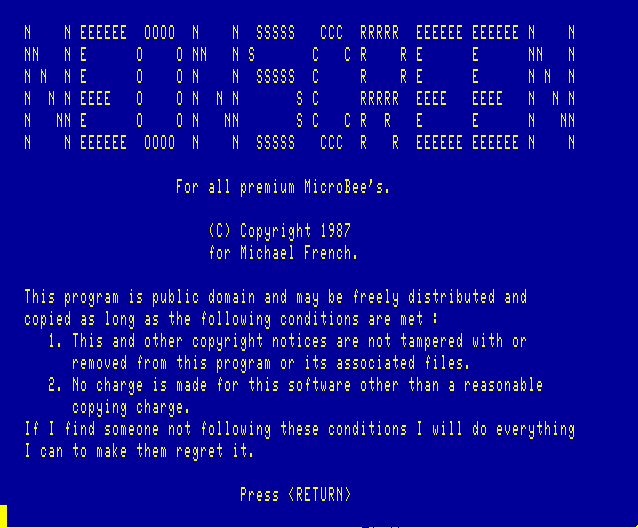
Opening screen after running BANNER is
There is a nice Demo file on the disk that shows off most NeonScreen options, so load the Banner file (DEMO) and then the Font list (FONTS). Hit S to start the banner. You can easily design and save your own banners.
So in the MbeeTech Repository in the Microbee\Software\Applications\Graphics folder we placed
neonscreen_ss80.dsk
neonscreen_manual.pdf <-- in Documentation\Manuals\Software folder
NeonScreen is a program written by Michael French in 1987 for the Premium
MicroBee computer completely in Turbo Pascal. It allows you to create
moving banners that scroll across the screen of your computer monitor.
It is very simple to use and allows you to make your banner perform all
sorts of tricks. You are continually aided by windows of information
listing all you options. Some of the tricks NeonScreen can perform are :-
Flashing the screen
Pausing the display
Clearing the screen
Changing the size of the text
Changing the foreground and background colours
Varying the speed at which the banner is displayed
Using different fonts like Data 70, Outline, Greek, etc
Opening screen after running BANNER is
There is a nice Demo file on the disk that shows off most NeonScreen options, so load the Banner file (DEMO) and then the Font list (FONTS). Hit S to start the banner. You can easily design and save your own banners.
So in the MbeeTech Repository in the Microbee\Software\Applications\Graphics folder we placed
neonscreen_ss80.dsk
neonscreen_manual.pdf <-- in Documentation\Manuals\Software folder
---------------------------
ChickenMan
ChickenMan